
Before You Start
The Fiscal Register module in Selio for Restaurants helps you manage mandatory fiscal tasks and stay compliant with local tax regulations.
For setup instructions, see the related article: Set Up Fiscal Devices.
Fiscal Register Functions #
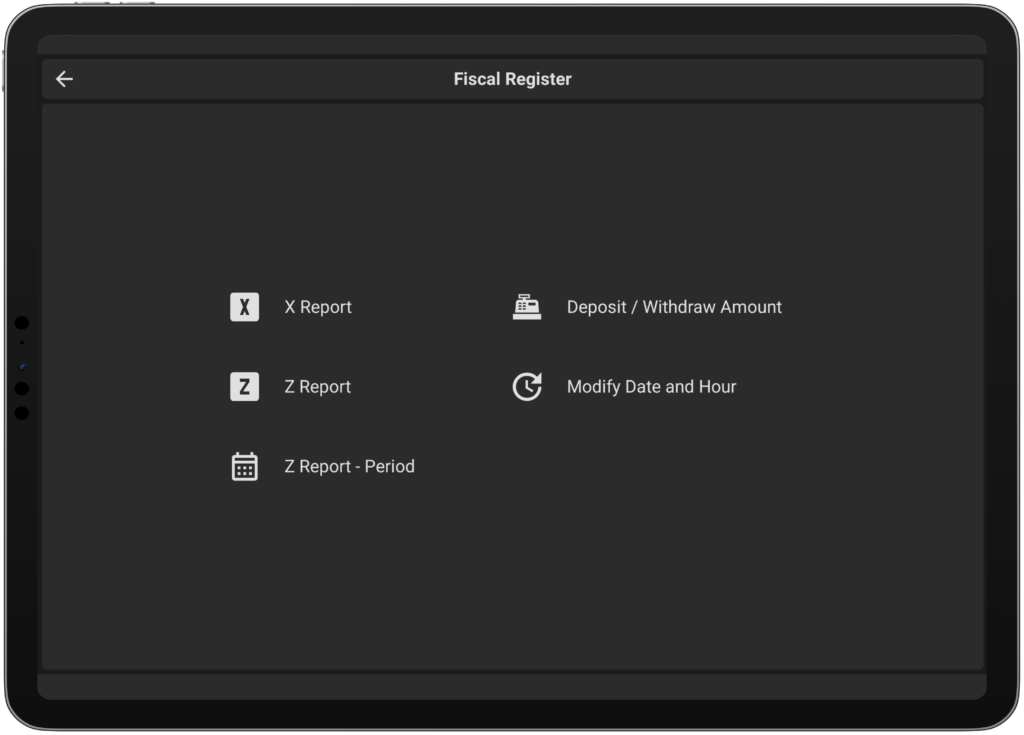
X Report (Mid-Day Report) #
- A snapshot of all sales and transactions processed up to the moment of printing.
- Includes total revenue and breakdown by payment methods.
To print the X Report:
- Select X Report.
- Press Print.
Z Report (End-of-Day Report) #
- Mandatory daily report summarizing all completed transactions.
- Automatically recorded into the fiscal memory as an official closing document for the day.
To print the Z Report:
- Select Z Report.
- Press Print.
⚠️ Note: The Z Report closes your daily fiscal cycle — this step is required for fiscal compliance.
Z Report – Period (Weekly/Monthly Report) #
- Consolidated fiscal report for a custom period (e.g., a week or a month).
- Includes payment summaries and totals.
To print a Z Report – Period:
- Select From Date and To Date.
- Choose Extended(detailed) or Condensed
- Press Print.
Deposit / Withdraw Cash #
Log cash movements to ensure your register’s cash balance is correct and audit-ready.
For Deposit: #
- Select Deposit.
- Enter the amount.
- Press Done.
For Withdraw: #
- Select Withdraw.
- Enter the amount.
- Press Done.
Modify Date and Time #
Adjust fiscal register time settings for accurate transaction logging.
To modify:
- Select the date and adjust.
- Select the hour fields and adjust.
- Press Done.
⚠️ Important: Changes are only allowed if they don’t conflict with existing register records.
💡 Pro Tips:
- Always run the Z Report before the end of your shift/day to avoid missing fiscal closures.
- Use the Z Report – Period for management or accounting teams to track week-to-week performance.


