Selio-logo
HomeSelio Restaurant App

Tour of Selio for Restaurants

Who is this article for?

Owners, managers, cashiers, servers, and anyone new to Selio Restaurant App.

Tour of Selio for Restaurants

Reviewed by: Selio Support Team

Last updated: January 1, 1980

Summary

Use this tour to orient new staff to the screens they touch most: order entry, open checks, payment, and end-of-shift tools.

Virtual Tour
Step 1
Step 2
Step 3
Step 4
Step 5
Step 6
Step 7

Lesson 01

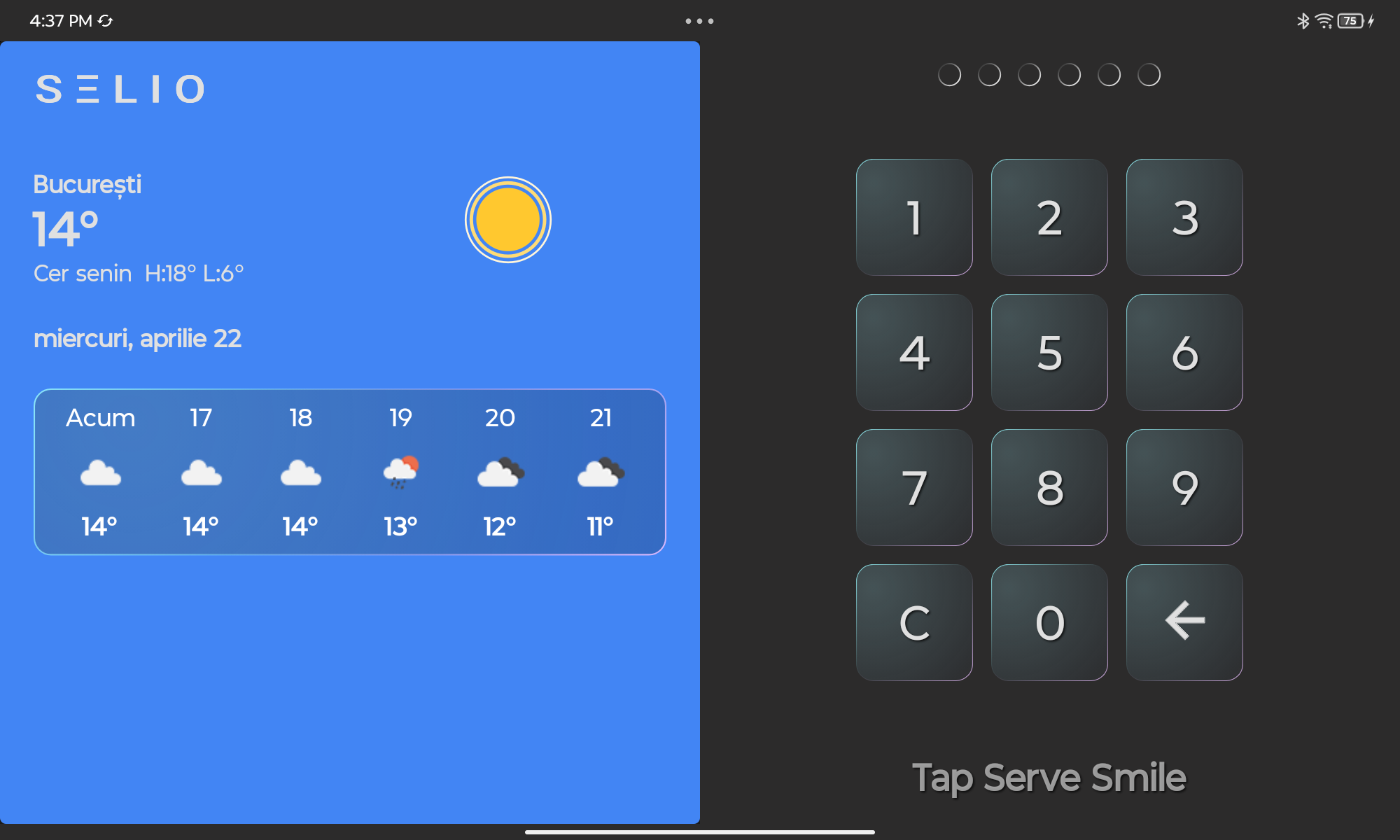
How to Login

Learn how to log into Selio POS using your staff PIN and access the main sales screen.

Lesson 01 complete

How to Login

Well done! You’ve completed this lesson.

Before you begin

  • Sign in and let the device finish syncing
  • Confirm you are in the correct location and menu context
  • Know whether the team uses New Sale, Floor Plan, or both

Steps

  1. Open the main screen and identify the primary navigation.
  2. Find where staff starts an order, whether through New Sale, Floor Plan, or another live-service entry point.
  3. Open an active order and note where items, notes, and next actions appear.
  4. Review where payment, transaction review, and operational actions are accessed.
  5. Locate settings, reporting, and close-of-day tools so managers know where to go after service.
  6. Choose the next detailed article based on the workflow your role uses most.

Troubleshooting

  • A key screen is missing: The signed-in role or location setup may not expose that area.
  • Menu content is empty or outdated: Recheck sync and confirm the device is using the expected menu.
  • Floor Plan is not available: That location may not be configured for table service.
  • Staff jumps between screens without a pattern: Train each role on its default order path before live service.